Preorders are one of the most powerful and most underused levers on eCommerce and if you are on Shopify, there’s a high chance you will need it. They let you sell a product before it physically lands in your warehouse, which means you can validate demand, protect cash flow during restocks, and turn a launch into a real revenue event instead of a guessing game. The catch is that Shopify doesn’t ship a true “Pre-Order” button out of the box, so most merchants aren’t sure how to set one up properly.
This is the complete guide. We’ll walk through what preorders are and when to use them, the two ways to set them up on Shopify, a step-by-step setup with a dedicated app, how to handle deposits and ship dates, the mistakes that quietly cost you sales, and how to turn every stock-out into committed revenue.
What Preorders Are (and When to Use Them)
A preorder lets a customer buy a product that isn’t available yet, either because it hasn’t launched, it’s between restocks, or it’s a limited drop you’re testing before committing capital. Instead of showing a dead “Sold Out” button, you keep the buy button alive and capture the order (and often the payment) up front. That’s the key difference from a plain waitlist: a waitlist collects interest, a preorder collects a sale.
Preorders shine in a few specific situations:
- New product launches: build a pipeline of paying customers before day one instead of hoping demand shows up.
- Restocks and backorders: keep selling a popular item that’s temporarily out of stock rather than handing the sale to a competitor.
- Limited or seasonal drops: gauge real demand before you place a bulk order with your supplier.
- Cash-flow-sensitive launches: let customer payments help fund the production run.
If you want the full business case, we break down the power of Shopify preorders in more detail. The short version: preorders turn interest into committed revenue earlier.
The Two Ways to Set Up Preorders on Shopify
There are really only two paths, and the right one depends on how seriously you’re running preorders.
Option 1, The Native, No-App Workaround
Shopify doesn’t include a built-in preorder button, but you can approximate one using native settings: turn on “Continue selling when out of stock” for the product, switch payment capture to manual, and edit your theme or product copy so shoppers know the item is a preorder.
This works for a low-volume, occasional preorder. But it has real ceilings. There’s no automatic “Pre-Order” button labeling, no partial payments or deposits, no clean way to separate preorder orders from in-stock ones, and manual payment authorizations expire within days, so on a longer lead time you can lose the payment entirely. We cover the full native setup and exactly where it breaks down in Shopify pre-order without an app.
Option 2, A Dedicated Preorder App (Recommended)
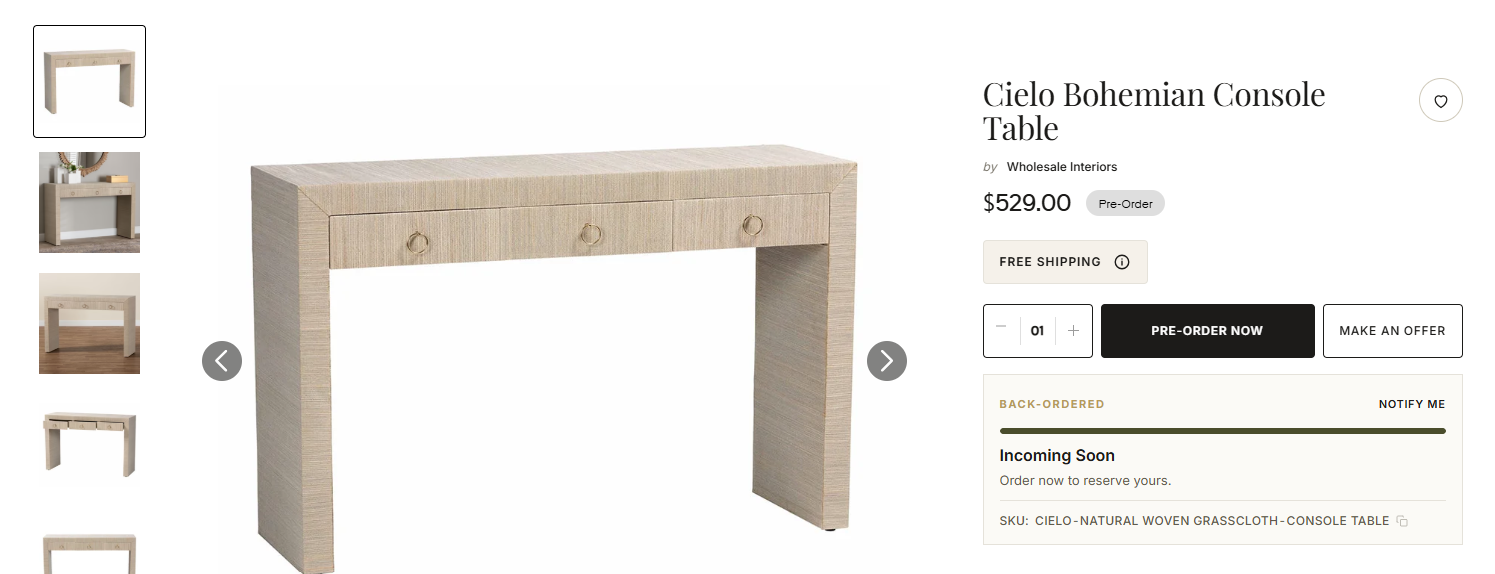
For anything beyond the occasional one-off, a purpose-built app removes the guesswork. A good preorder app automatically labels the button, lets you take deposits or full payment, handles mixed carts (preorder items alongside in-stock ones), displays ship-date messaging, and reports on preorder demand so you know how much to order. If you’re weighing your options, here’s how we compare the best pre-order apps for Shopify.
Our recommendation is Notify Me!™ Preorder. It’s built specifically for sales recovery on Shopify, so preorders live in the same app as Back in Stock, Low Stock, and Wishlists, which matters more than it sounds like, as you’ll see below.
How to Set Up Preorders With Notify Me! (Step by Step)
Here’s the workflow from install to live preorder. It takes about ten minutes.
- Install the app. Add Notify Me! from the Shopify App Store and open the dashboard.
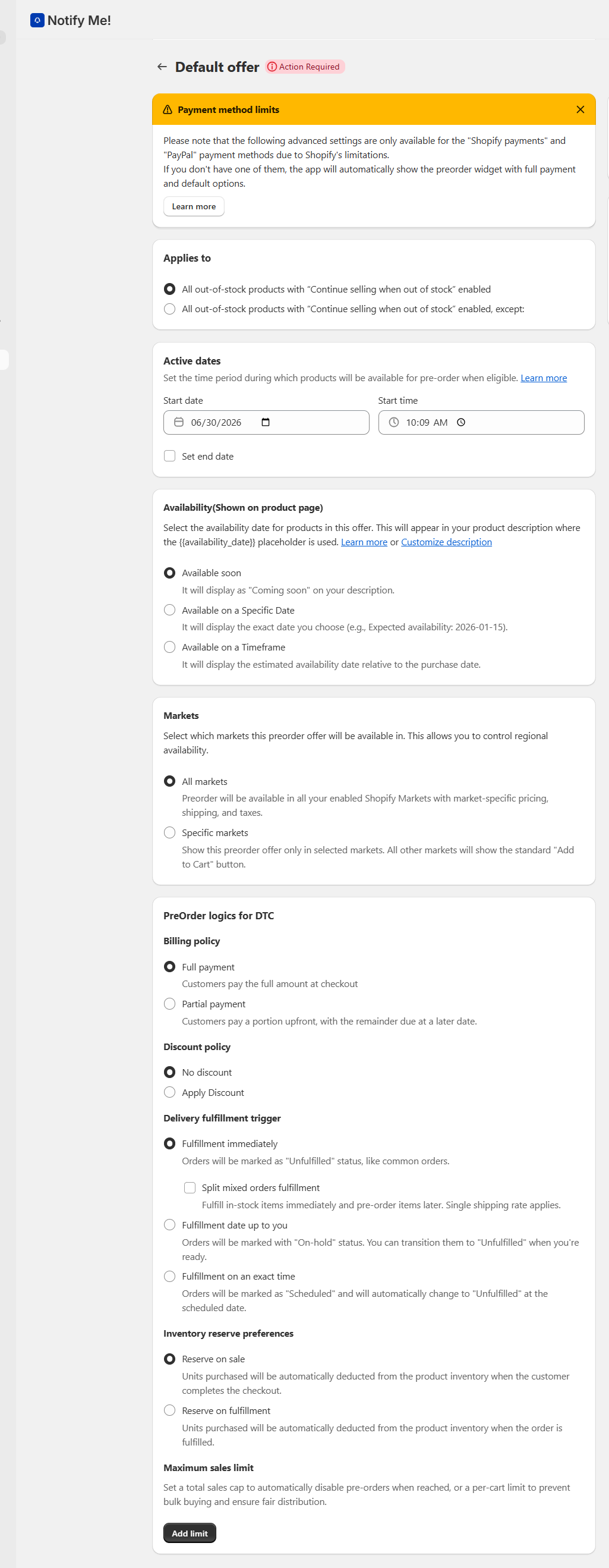
- Enable Preorder. Turn on the Preorder feature and choose which products or variants should accept preorders, you can target a single variant (say, one size) without touching the rest of the catalog.
- Customize the button. Change the button label to something clear like “Pre-Order Now,” and add a badge so shoppers instantly understand the item ships later rather than right away.
- Set your payment terms. Decide between full payment up front or a partial deposit, more on that in the next section.
- Add a ship-date message. Tell customers when to expect delivery, right on the product page.
- Publish and test. Place a test preorder to confirm the button, checkout, and messaging all behave, then go live.
You can see the full feature set on our Shopify preorder page.
Add Notify Me! to your Shopify store
Partial Payments and Deposits
One of the biggest reasons to use an app is deposits. Asking for the full amount months before a product ships can scare off buyers; asking for nothing leaves you exposed to flaky orders that never convert. A partial payment, a deposit now, the balance when the item ships, splits the difference.
Deposits do two things at once. They lower the barrier to commit, because a smaller charge feels easier to say yes to, and they filter out low-intent shoppers, so the preorders you collect are far more likely to turn into fulfilled sales. For example, a $120 jacket launching in two months might take a 25% deposit at checkout and automatically capture the remaining $90 when stock lands. With Notify Me!, you set that deposit as a percentage or a fixed amount and collect the balance automatically on restock. This is the piece the native workaround simply can’t do reliably.
How to Communicate Ship Dates
Preorders live or die on expectations. The single fastest way to generate refund requests and support tickets is to be vague about when the product actually ships.
Set expectations in three places:
- On the button or badge: a “Ships in October” style label right next to the price.
- In the product description: a clear line stating the ship window and what happens after checkout.
- In the confirmation and follow-up: remind customers of the timeline when they order, and again if the date moves.
When something slips, tell people early. A proactive “your order is still on track for X” email buys an enormous amount of goodwill and prevents cancellations. For more on framing and timing, see our Shopify pre-order tips.
Common Preorder Mistakes to Avoid
A handful of avoidable errors account for most preorder disappointment:
- Vague or missing ship dates. “Coming soon” isn’t a date, always give a window.
- Charging full price with no deposit option on long lead times, which quietly suppresses conversions.
- Forgetting to switch preorder off once inventory lands, so in-stock items still say “Pre-Order.”
- Hiding the preorder terms until checkout, which erodes trust and drives refunds.
- Overselling beyond what you can actually produce, a preorder is still a promise, not a free option.
Turn Back-in-Stock Demand Into Preorders
Here’s the move most stores miss. When a product sells out, the default is a back-in-stock email signup, you capture an address and hope the customer comes back later. A preorder captures the sale now.
Because Notify Me! runs Back in Stock and Preorder in the same app, you can convert that out-of-stock moment directly into committed revenue. Instead of only collecting interest, you let shoppers preorder the item and pay (or leave a deposit) on the spot. You close the gap between “I want this” and “I bought this” during the exact window you’d normally be losing sales. For creative ways to promote that moment, we rounded up our favorite pre-order marketing tricks.
Conclusion
Setting up preorders on Shopify comes down to one decision: the native workaround for the occasional drop, or a dedicated app when preorders are a real part of how you sell. If you want automatic button labeling, deposits, clean ship-date messaging, and the ability to turn every stock-out into a preorder, that’s exactly what Notify Me! is built for. Start with a preorder on your best-selling out-of-stock product, you’ll be surprised how much demand was waiting on the other side of that “Sold Out” button.