
If you’ve ever logged in to find that a bestseller has been quietly sold out for three days while customer service fields the “when is it back?” emails, you already know the pain. Low stock is not just an ops problem. It is a revenue problem with a long tail of refunds, abandoned carts, and SEO damage from out-of-stock product pages no one fixes.
The good news: Shopify ships with enough native tooling to set up basic low stock alerts, no paid app required. The honest news: there are three different jobs hiding inside the phrase “low stock alerts,” and the native setup only handles one of them well.
Here’s how to set up each layer, what the native approach can and can’t do, and where it starts costing you more than it saves.
The TL;DR
There are three different things merchants actually mean by “low stock alerts on Shopify”:
- Internal alerts so you, the merchant, know when a SKU is running out and need to reorder
- Customer-facing urgency like “Only 3 left in stock!” to nudge buyers off the fence
- Recovery alerts for when stock hits zero and you want to capture lost demand instead of losing it forever
Shopify Flow handles the first one well for free. The other two are where native runs out of road.
Step 1: Set Up Internal Low Stock Alerts with Shopify Flow
This is the literal “how to add low stock on Shopify” answer. Shopify Flow is free on every paid plan now, and it’s the cleanest native way to get emailed when an SKU drops below a threshold.
Define your reorder point first
Before you build the workflow, decide what “low” actually means for each product. A common formula:
Reorder point = (average daily sales) × (supplier lead time in days) + safety buffer
A product that sells 5 units a day with a 14-day lead time and a 7-day buffer needs a reorder point around 105 units. Bestsellers get higher thresholds. Slow movers can run lean. Skipping this step is how you end up with a flat “alert me at 10 units” rule that fires constantly for fast SKUs and never fires in time for slow ones.
Build the workflow
Inside your Shopify admin:
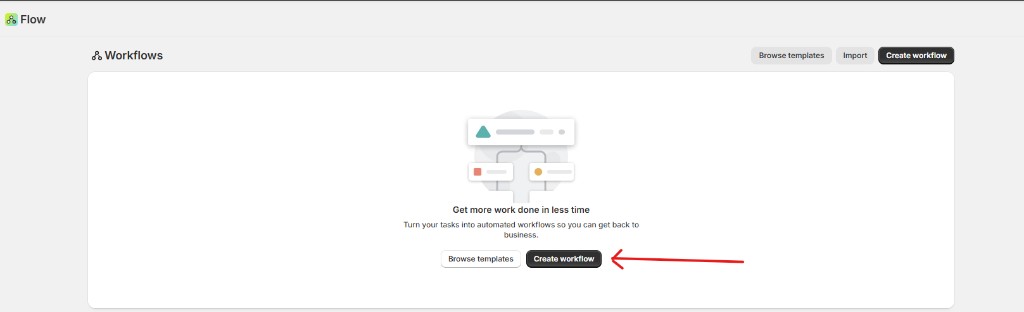
- Go to Apps → Shopify Flow (install Flow first if you haven’t)
- Click Create workflow
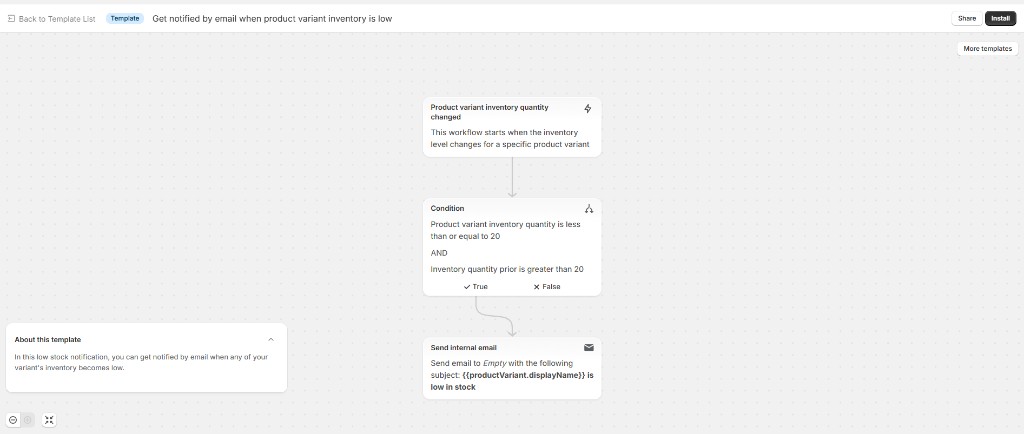
- For the trigger, select Shopify → Product variant inventory quantity changed
- Add a Condition step, set the variable to
productVariant/inventoryQuantity, choose Less than or equal to, and enter your threshold (start with 10 if you’re not sure) - Add an Action step, choose Flow → Send internal email
- In the email body, include the key fields so the alert is useful at a glance:
- Product:
{{ product.title }} - Variant:
{{ productVariant.title }} - Stock remaining:
{{ productVariant.inventoryQuantity }} - Action: Review and restock
- Product:
Name the workflow something obvious like “Low Stock Alert: Below 10 units,” turn it on, and test by manually adjusting an SKU’s inventory in admin.
Skip the build with a template
Shopify maintains a template library inside Flow. The one you want is called “Get notified by email when product variant inventory is low.” One click installs the entire workflow. You still set your own threshold and email address, but it removes most of the configuration.
What this gets you
You’ll get an email every time a variant crosses your threshold. That’s it. No dashboard, no aggregated daily digest, no per-collection routing without significant condition logic, and no automatic supplier-side actions. For most small-to-mid Shopify stores running fewer than 200 SKUs, this is enough.
Step 2: Add a Reporting Layer (Optional but Recommended)
Email alerts handle the “react” side. Reports handle the “plan” side.
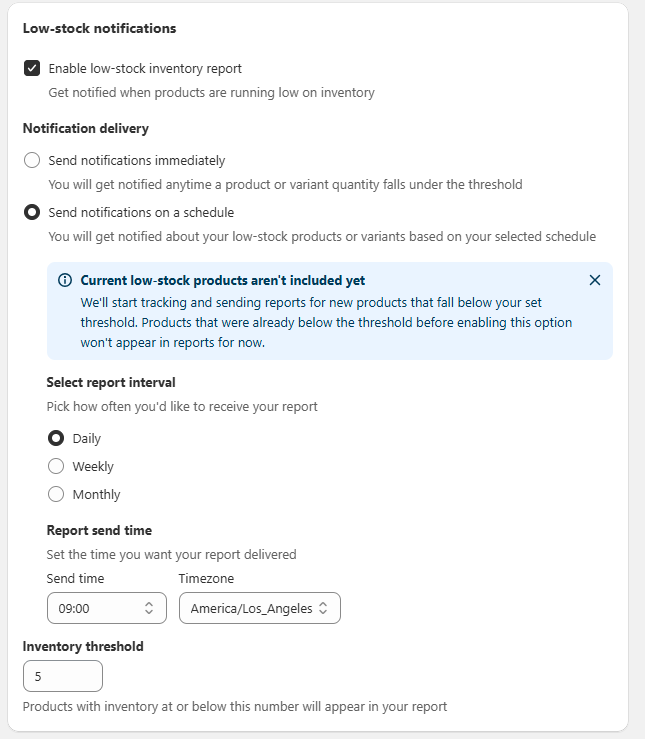
If you’re on Shopify, Shopify Plus, or higher, two reports earn their keep:
- Inventory low days remaining, under Analytics → Reports → Inventory. Projects how many days of stock you have left based on recent sales velocity. Anything under 14 days is a flashing yellow light.
- ABC analysis by product ranks SKUs by revenue contribution, so you know which low-stock items actually matter.
Lower plans (Basic Shopify) have more limited reporting. You’ll need to filter the Inventory page manually or rely on Flow alerts alone.
Step 3: Show “Only X Left in Stock” to Customers
This is the second layer most merchants want, and where the native answer gets thinner.
Showing stock urgency to customers does two things: it nudges hesitant buyers off the fence, and it sets expectations honestly so people don’t get the dreaded “out of stock” surprise at checkout. Done well, it commonly lifts conversion 5 to 15% on the products where it appears.
Option A: Edit theme code
You can pull inventory quantity into your product template with Liquid. In a modern Dawn-based theme, open sections/main-product.liquid, find the buy-buttons block, and add:
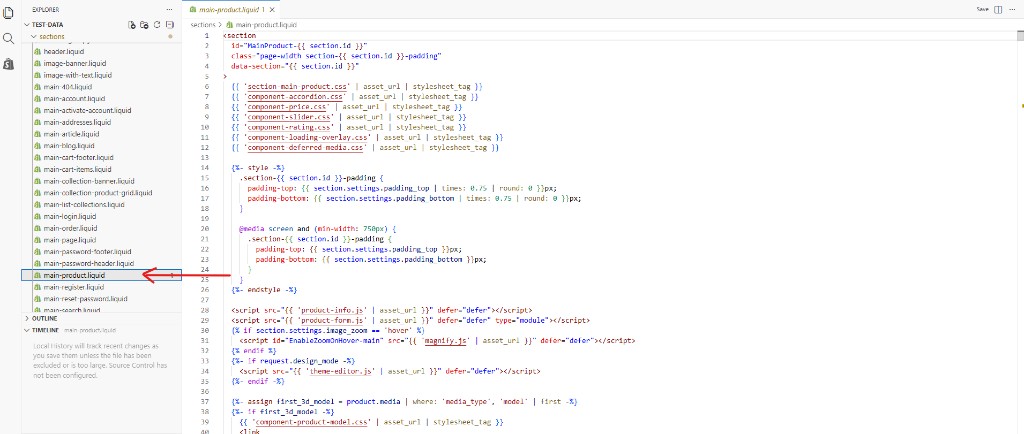
{%- assign current_variant = product.selected_or_first_available_variant -%}
{%- if current_variant.inventory_quantity > 0
  and current_variant.inventory_quantity <= 10 -%}
  <p class="low-stock-message">
    Only <strong>{{ current_variant.inventory_quantity }}</strong> left in stock
  </p>
{%- endif -%}
Then style it in assets/base.css:
.low-stock-message {
  margin-top: 10px;
  color: #c0392b;
  font-weight: 600;
  font-size: 14px;
}
This works, but it has rough edges:
- Variant switching is sticky. The count won’t update when a customer flips between sizes or colors without additional JS to re-render
- The threshold is hardcoded. Per-product control needs a metafield
- Theme updates can overwrite your edits. Document every change
- Collection page urgency requires separate edits in
snippets/card-product.liquid
A developer can finish this in an hour. An untrained merchant should not touch it without a staging theme.
Option B: Use Notify Me!
This is where Notify Me! shortens the path. The app has a built-in low stock indicator that shows “Only X left” on the product page when inventory drops below a threshold you set. No Liquid, no metafields, no theme update risk.
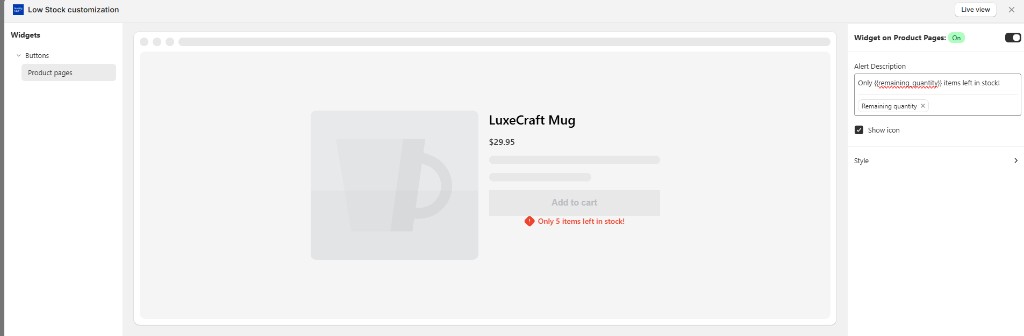
You also get:
- Per-product or store-wide threshold control
- Variant-aware messaging that updates as customers switch variants
- Customizable copy, color, and placement
- Works on collection pages too
For most stores, an hour of merchandiser time to configure beats the recurring cost of theme-edit maintenance.
What Native Shopify Can’t Do
Here’s where the boundaries sit, plainly:
| Capability | Native Shopify | Notify Me! |
|---|---|---|
| Email merchant when stock drops below threshold | ✅ (via Flow) | Use Flow for this |
| ”Only X left” badge on product pages | ❌ (requires code) | ✅ |
| Variant-aware urgency messages | ❌ (requires JS) | ✅ |
| Customer waitlist when stock hits zero | ❌ | ✅ |
| Auto-notify customers when SKU is restocked | ❌ | ✅ |
| AI-generated restock campaign content | ❌ | ✅ |
| Wishlist for tracking interest | ❌ | ✅ |
| Preorder when item runs out | ❌ | ✅ |
The Flow approach is solid for what it is, but it stops at notifying you. It does nothing about the demand sitting on your storefront once you’re out. When you need pre-orders past zero inventory, see Shopify pre-order without an app for the native setup and its limits.
The Real Cost of Low Stock: When It Hits Zero
Here’s the part most low-stock articles skip: knowing you’re low only matters if you do something about it before you hit zero. And even with a perfect Flow alert, you will hit zero on something this quarter. Supply chains slip. Bestsellers spike. Restocks lag.
The real question is what happens to the traffic still landing on your sold-out product pages.
Industry research is consistent on three things:
- A significant share of shoppers who hit a stockout page leave the site entirely (commonly cited estimates put it in the 20–40% range)
- A meaningful portion go buy from a competitor, often the next Google result for the same product
- Most of the rest either substitute (rare) or ask “when’s it back?” through customer service — by which time they’ve usually moved on
Most of that demand is recoverable, but only if you capture it the moment they land on the out-of-stock page. That’s the second pivot Notify Me! handles — the same recovery layer covered in our back in stock notification guide:
- A “Notify Me When Available” button replaces the dead “Sold Out” button
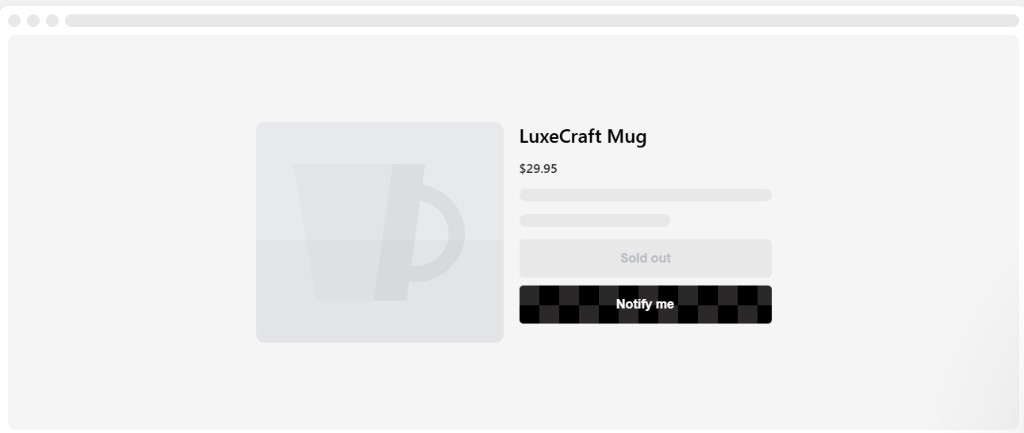
- Customers leave their email or SMS in one tap
- When you restock, the app sends an automated alert to the waitlist
- Merchants typically see strong double-digit conversion rates on waitlist alerts — several times higher than typical retargeting ad ROI
Combined with the urgency indicator from the previous step, you get a clean lifecycle:
- Stock is healthy: product sells normally
- Stock is low: “Only X left” urgency converts hesitant buyers
- Stock is zero: waitlist captures every visitor instead of bouncing them
- Stock is back: automated email or SMS pulls the waitlist back to convert
Native handles step 1 and partially step 2. Steps 3 and 4 are where the math actually starts to move.
When Native Is Fine, and When to Upgrade
The Flow-only approach works if:
- You have fewer than ~50 SKUs and can eyeball urgency yourself
- Your products don’t sell out often (a couple of stockouts per quarter)
- You have dev resources for occasional Liquid edits when you want urgency badges
- You’re early-stage and protecting cash flow above all else
You’ll outgrow native the moment:
- You’re hitting stockouts weekly and watching out-of-stock pages bleed traffic
- You’re running launches or restocks with predictable demand spikes
- Your AOV is over $50 and even a single recovered waitlist sale pays for the app several times over
- You want urgency, waitlist, restock alerts, and reporting to talk to each other instead of stitching together five point solutions
Most stores cross that line earlier than they realize. Flow alerts feel productive because they show up in your inbox, but the real money is in the demand you stop losing on the storefront itself.
The Bottom Line
You can absolutely add low stock alerts to Shopify without paying for a thing. Shopify Flow gets you internal emails, native reports give you projected runway, and an hour of Liquid edits puts an urgency message on your product pages.
What native cannot do is turn a stockout into a future sale. That’s the layer that actually changes the unit economics, and it’s the one Notify Me! was built for — low stock urgency, waitlists when you hit zero, and automated restock alerts in one app, instead of one Flow workflow stitched to a fragile theme edit.
If you’re at the point where stockouts are costing you real money, that’s the upgrade worth making. Start with Notify Me! — low stock indicators, back-in-stock alerts, and waitlists in one install.